
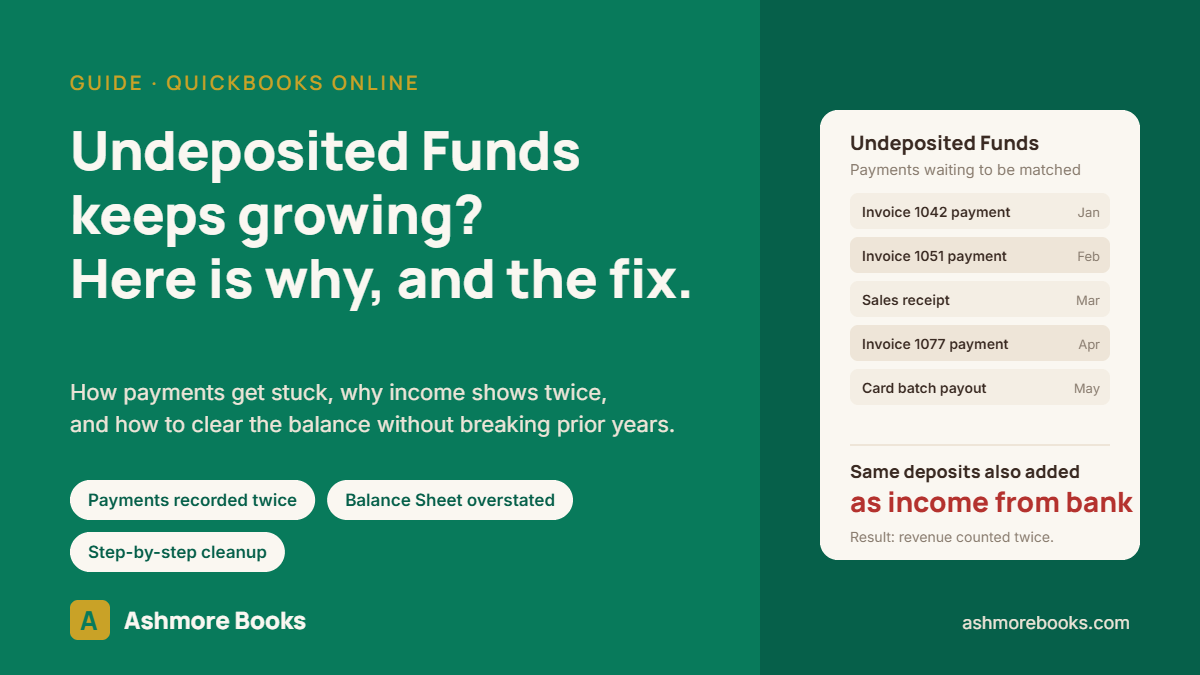
Undeposited Funds in QuickBooks Online is a holding account for customer payments that have been recorded but not yet grouped into a bank deposit. When the balance keeps growing, it almost always means payments are being recorded once through invoices and again through the bank feed, so income is counted twice and the Balance Sheet carries money that is already in the bank.
This guide explains what you are seeing, why it happens, how to clear it step by step, and when the fix should not be done by hand.
What you are seeing
- Undeposited Funds (QuickBooks now labels the screen “Payments to deposit”) shows a balance that never goes down, sometimes tens of thousands of dollars.
- The bank account in QuickBooks reconciles fine, so it does not look like a problem.
- Income on the Profit and Loss is higher than what actually came in.
- Customer balances look correct, invoices show as paid, but the money never seems to “arrive” in QuickBooks.
Why it happens
When you receive a payment against an invoice, or record a sales receipt, QuickBooks asks where to deposit it. If the Deposit to field is set to Undeposited Funds, the payment sits in that holding account until you create a Bank Deposit that picks it up.
The problem starts at the bank feed. The real deposit appears under Banking, and instead of being matched to the payment already waiting in Undeposited Funds, it gets added as a new transaction posted to an income account. Now the sale exists twice: once as the invoice payment, once as the bank deposit. The invoice payment is stuck in Undeposited Funds forever, and income is overstated by the same amount.
Three things make it worse:
- Card processors such as Stripe, Square, or a merchant account pay out in batches net of fees, so the bank deposit never equals any single payment and the match is not obvious.
- Someone recording invoices and someone else working the bank feed, with nobody comparing the two.
- Bank rules that automatically add every deposit to Sales, so the mistake repeats itself every week.
How to fix Undeposited Funds in QuickBooks Online
Work through it in this order. Do not delete anything until step 2 tells you what is duplicated.
Step 1: See what is sitting in the account
- Go to Reports and open the Balance Sheet for All Dates.
- Click the Undeposited Funds balance. This opens a transaction report listing every payment still waiting.
- Export it or note the dates and amounts. This is your worklist.
Step 2: Find the duplicate deposits
- Open the bank register (Accounting, then Chart of Accounts, then View register on the bank account).
- For each payment on the worklist, find the deposit in the register for that amount or, for card batches, for the net total on that date.
- If the deposit was posted to an income account instead of to Undeposited Funds, that is the duplicate.
Step 3: Fix a current-year duplicate
- Open the deposit from the register.
- In the top section, “Select the payments included in this deposit”, tick the payment or payments that make up this deposit.
- In the lower section, “Add funds to this deposit”, delete the line that was posted to income.
- If the deposit is a card batch, keep the net amount equal to the bank by adding a negative line for the processing fee to your merchant fees expense account.
- Save. The payment leaves Undeposited Funds, the duplicate income disappears, and the bank balance does not change.
Step 4: Match correctly going forward
In Banking, under For Review, do not press Add on customer deposits. Click the transaction, choose Find match, and tick the payments that make up the deposit. If the bank amount is lower because of fees, use Resolve difference and post the fee to the expense account. Delete any bank rule that adds deposits straight to income.
Step 5: Decide whether you need Undeposited Funds at all
If most payments land in the bank one by one, set the Deposit to field on payments and sales receipts to the bank account directly. Undeposited Funds is only useful when several payments are deposited together, such as a stack of checks or a processor payout. Fewer things go into the holding account, fewer things get stuck.
When the balance belongs to a year already filed
This is where people get into trouble. If the duplicates sit in a year whose tax return has been filed, editing those deposits changes reported income after the fact. Two things then happen: the current Balance Sheet no longer agrees with the filed return, and nobody has a record of why.
The usual approach is to leave the filed year alone and clear the old payments in the current year with a zero-dollar bank deposit: select the stuck payments, then add a negative line for the same total. Where that negative line goes depends on whether prior-year income was actually overstated, whether the return should be amended, and how large the amount is. That is a judgment call, not a data entry step, and it belongs with whoever prepares the return.
When to hand it off
Clearing a handful of current-year duplicates is a reasonable job to do yourself with the steps above. Hand it off when:
- The balance spans more than one year or includes a filed year.
- Card processor batches are involved and the fees were never recorded.
- The bank reconciles but the books still look wrong, which usually means Undeposited Funds is one of several issues.
- You are not sure whether prior-year income was overstated and by how much.
- Unapplied Cash Payment Income is also showing on your cash basis Profit and Loss, which is usually the same problem seen from the sales side.
This is standard QuickBooks cleanup work. If you want to know how deep the problem goes before deciding, request a free Books X-Ray. We review the file read-only, tell you exactly what is stuck and where, and give you a fixed quote to clear it.
Frequently asked questions
What is Undeposited Funds in QuickBooks Online?
Undeposited Funds is a holding account. When you record a customer payment or sales receipt, QuickBooks can park the money there until you group it into a bank deposit. It exists so that several payments deposited together show up as one line on the bank statement, which is what makes reconciliation work.
Why does my Undeposited Funds balance keep growing?
Payments are going in but no bank deposit is taking them out. Usually the deposit was recorded separately from the bank feed and posted straight to income, so the payment never gets matched. The money is real and in the bank, but QuickBooks is still waiting for it, and the income was counted twice.
Can I delete the Undeposited Funds account?
No. It is a default account QuickBooks Online creates and it cannot be deleted or made inactive while it has a balance. What you can do is stop using it: set the Deposit to field on payments and sales receipts to the bank account directly whenever a payment lands in the bank on its own.
Should I fix Undeposited Funds from a year that has already been filed?
Not directly. Deleting or changing deposits in a filed year changes the income already reported on the tax return. The safer route is to clear the old balance in the current year with a zero-dollar deposit and have the offset reviewed, so the fix is documented and the prior-year return is not silently rewritten.