
The bank feed is supposed to save time. Transactions come in from the bank, you add or match them, and the books stay current. Then the bank balance in QuickBooks Online stops agreeing with the statement. Some transactions are in the books twice. Others never made it in at all. Both problems are common, both distort the Profit and Loss, and both have a clear set of causes.
In Tax deadline is close and the books are not ready, we listed the cleanup work that matters most before a return is filed. Getting the bank feed right is near the top of that list, because every other number in the books depends on it.
The short answer
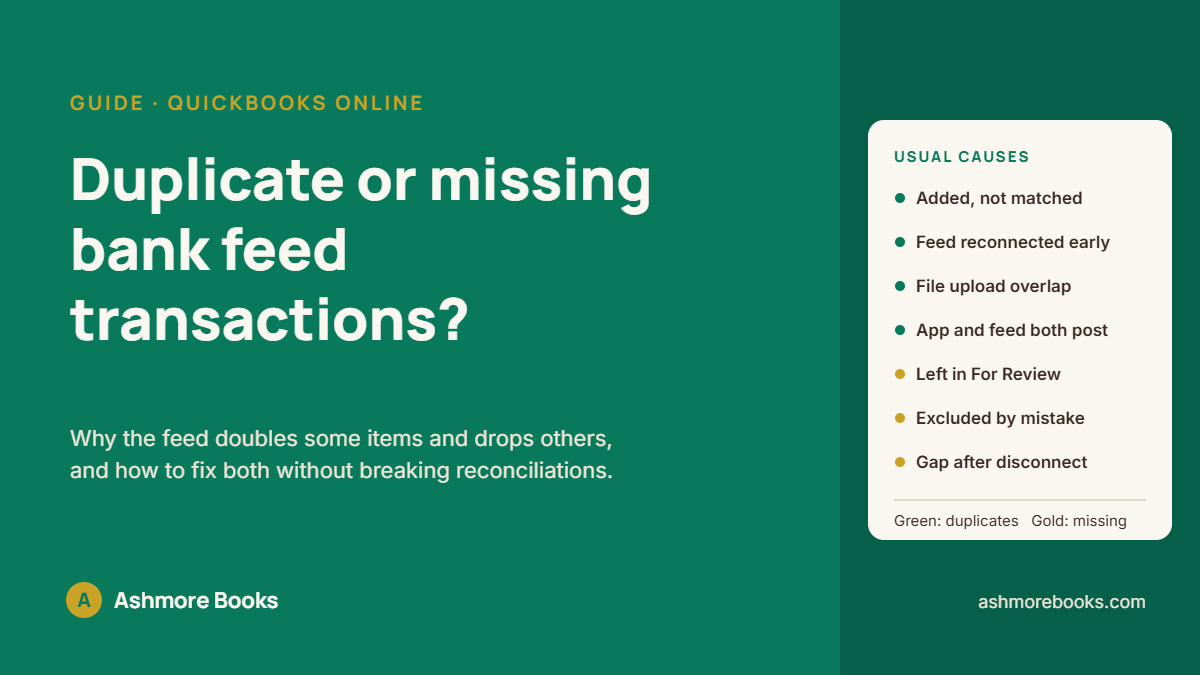
Duplicates usually happen when a transaction already exists in QuickBooks and the bank feed line is added instead of matched, or when the same date range is downloaded twice. Missing transactions usually sit in the For Review or Excluded tab, or fall into a gap when the bank connection broke. Both show up as a reconciliation that will not balance.
Why the bank feed creates duplicates
1. Added instead of matched
This is the most common cause. An invoice payment, bill payment, check, or expense is entered by hand. Later the same transaction arrives in the bank feed. QuickBooks usually suggests a match, but if someone clicks Add, the transaction is recorded a second time. For deposits, this is how income gets counted twice. For payments, it is how expenses or bills get paid twice on paper.
2. The bank account was reconnected with an earlier start date
When a connection breaks and the account is linked again, QuickBooks asks how far back to download. If the chosen date is earlier than the last transaction already added, the overlap comes in again as new items in For Review. Adding them creates a second copy of every transaction in that window.
3. A file upload overlapped the feed
Bank statement files (CSV, QBO, QFX, or OFX) are often uploaded to fill a gap. If the file covers dates the feed already downloaded, the overlapping lines come in twice.
4. An app and the bank feed both record the same money
Payment processors, e-commerce platforms, and payroll providers can post transactions into QuickBooks through an integration. If the deposit or payroll debit is then also added from the bank feed, the same money is recorded twice. Each stream of money needs one source in the books, not two.
5. Rules that add automatically
A bank rule set to add transactions automatically will keep adding, even when the same transaction was already entered another way. One wrong rule repeats the duplicate every month.
Why transactions go missing
- Still in For Review. Until a transaction is added or matched, it is not in the books. Old items can sit in the tab for months.
- Excluded by mistake. Excluding is meant for true duplicates. A real transaction excluded by accident disappears from the books without any warning.
- A gap after a disconnect. If the connection was broken for a period and never backfilled, those weeks or months are simply not there.
- Limited history on first connection. When an account is first connected, the bank only sends a limited window of history. Anything older has to be uploaded or entered.
- An account that was never connected. A second checking account, a savings account, a credit card, or a PayPal balance that nobody linked.
- Deleted transactions. Someone removed an entry while cleaning up and did not replace it.
A file can show every one of these issues and still look normal on the surface. Here is why books that seem to match the bank can still be wrong.
How to find them in QuickBooks Online
- Compare month-end balances. For each month, compare the ending balance in the QuickBooks bank register to the ending balance on the bank statement. The first month where they differ is where to start.
- Sort the register by amount. Open the bank register for that month and sort by amount. Two lines with the same amount on the same or nearby dates are the first duplicates to check.
- Check the Categorized tab. In Banking, the Categorized tab shows each feed line and whether it was added or matched. A deposit that was added while a matching payment sits in Undeposited Funds is a duplicate.
- Check For Review and Excluded. Anything in For Review for that period is missing from the books. Anything in Excluded should be a true duplicate; if it is not, it is missing too.
- Check the Audit Log. Settings, then Audit Log, shows deleted transactions and who deleted them.
- Reconcile. Once the balances agree month by month, run the reconciliation against each statement. A reconciliation that balances is the proof the bank account is right.
How to fix duplicates
When the duplicate came from the feed
- Go to Banking and open the Categorized tab.
- Find the feed line that was added and click Undo. It moves back to For Review and the added transaction is removed.
- Open it again in For Review and choose the existing transaction it should match, such as the invoice payment, bill payment, or expense already entered.
- Confirm the match. The bank line and the original transaction are now one entry.
Undo is better than deleting the transaction from the register, because Undo keeps the feed line available to match correctly.
When the duplicate is still in For Review
If a re-download or file upload brought in lines that are already in the books, select them in For Review and choose Exclude. This is exactly what Exclude is for.
When the duplicate is in a reconciled month or a filed year
Removing a duplicate from a month that is already reconciled changes that reconciliation, and the next reconciliation will start from a different beginning balance. If the month belongs to a year whose tax return has been filed, the change also affects reported income or expenses. Fixes in a filed year are a judgment call, not a data entry step, and they belong with whoever prepares the return.
How to fill in missing transactions
- For Review: add or match the waiting items, starting with the oldest.
- Excluded: select any real transaction excluded by mistake and click Undo to send it back to For Review.
- A gap in the feed: download a CSV or QBO file from the bank for the missing dates only, then upload it through Banking. Keep the file to the exact gap so nothing overlaps.
- History older than the bank allows: enter the transactions from the statements.
- Accounts never connected: connect them, or upload their statements, so every account the business uses is in the books.
How to stop it from happening again
- Match before you add. If QuickBooks suggests a match, check it before choosing anything else.
- When reconnecting a bank, pick a start date after the last transaction already in the books.
- Choose one source for each stream of money: either the app posts it or the bank feed does, not both.
- Review bank rules regularly and avoid rules that add automatically.
- Reconcile every account every month, so a problem is caught in weeks, not years.
When to hand it off
Clearing a few duplicates in the current month is a reasonable job to do yourself. Hand it off when:
- The bank balance has been off for several months and you cannot find where it started.
- Duplicates or gaps reach into reconciled months or a year already filed.
- An integration and the bank feed have both been posting for a long time.
- More than one account is affected, or some accounts were never connected.
This is everyday QuickBooks cleanup work, and when months are missing entirely it becomes catch-up bookkeeping. To see how deep the problem goes before deciding, request a free Books X-Ray. We review the file read-only and send written findings, the recommended scope, and a fixed quote within 24 hours.
Once duplicates and gaps are cleared, the next question is usually why the reconciliation still starts from the wrong number. The next article in this series covers a reconciliation beginning balance that is off.
Frequently asked questions
Why does QuickBooks Online show the same transaction twice?
Usually because the transaction was entered by hand and the bank feed line was then added instead of matched, or because the same dates were downloaded twice after a reconnection or file upload. Undo the added feed line and match it to the existing entry.
Should I delete or exclude a duplicate bank transaction?
If the duplicate is still in For Review, exclude it. If it was already added, use Undo on the Categorized tab and then match it. Deleting from the register works but loses the link to the bank line.
Where do excluded transactions go in QuickBooks Online?
They stay in the Excluded tab under Banking and are not recorded in the books. To bring one back, select it in the Excluded tab and click Undo. It returns to For Review.
Why are some bank transactions missing from QuickBooks?
They are often still waiting in For Review, were excluded by mistake, or fall in a period when the bank connection was broken. Older history may also be outside what the bank sends when an account is first connected.
Can I upload a bank statement to fill a gap in the feed?
Yes. Download a CSV or QBO file from the bank for the missing dates and upload it in Banking. Limit the file to the gap so it does not overlap transactions already in the books.
Will fixing duplicates change my reconciled balances?
It can. Removing a transaction from a reconciled month changes that reconciliation and the next beginning balance. If the month is in a filed tax year, talk to whoever prepares the return before changing it.
QuickBooks cleanup series
Read more about fixing QuickBooks Online books
- Undeposited Funds in QuickBooks Online: Why the Balance Keeps Growing and How to Clear It
- Unapplied Cash Payment Income in QuickBooks Online: What It Means and How to Clear It
- My P&L Shows a Profit, but I Know the Business Is Losing Money
- Tax Deadline Is Close and the Books Are Not Ready: What to Do Now
- Duplicate and Missing Transactions in the QuickBooks Online Bank Feed (you are reading this)
Need the books fixed rather than read about? See QuickBooks cleanup.